
Run kb4it without any command in a terminal and it opens a full-screen interface. Use the mouse or the keyboard: Tab moves between buttons and Enter activates them. On the project list, q quits; inside a project, Esc goes back to the list.
Add a project
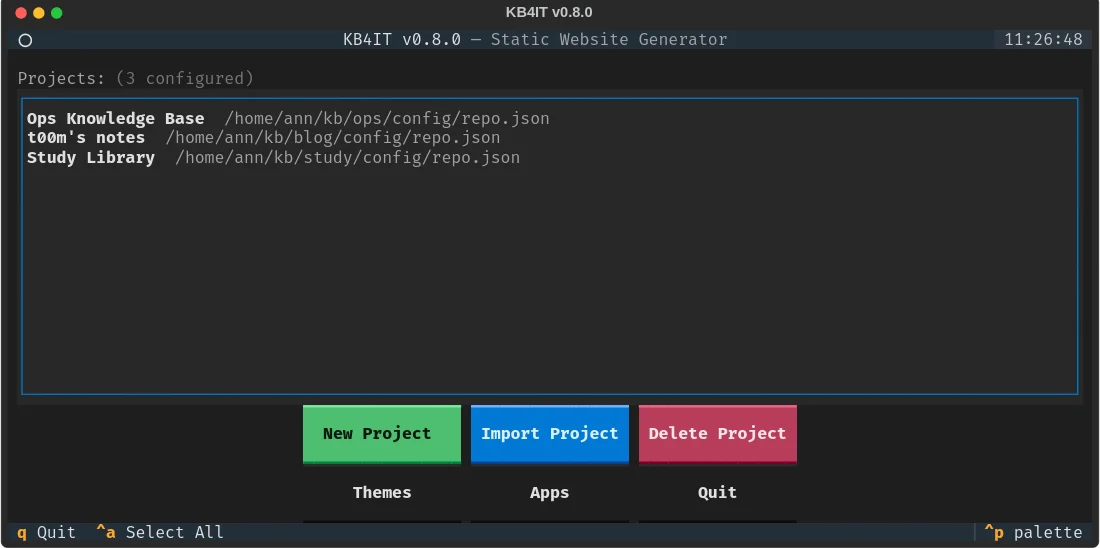
The main screen lists your projects. Knowledge bases made with kb4it create, here or on the command line, are added automatically.
- New Project creates a knowledge base: choose a theme and a sample app, type a display name and the folder to create. The parent folder must exist.
- Import Project adds one you already have: type the path of its
config/repo.jsonand press Enter to preview it, then Import. - Delete Project removes the selected project from the list. The files on disk stay.
Work on a project
Select a project and press Enter.
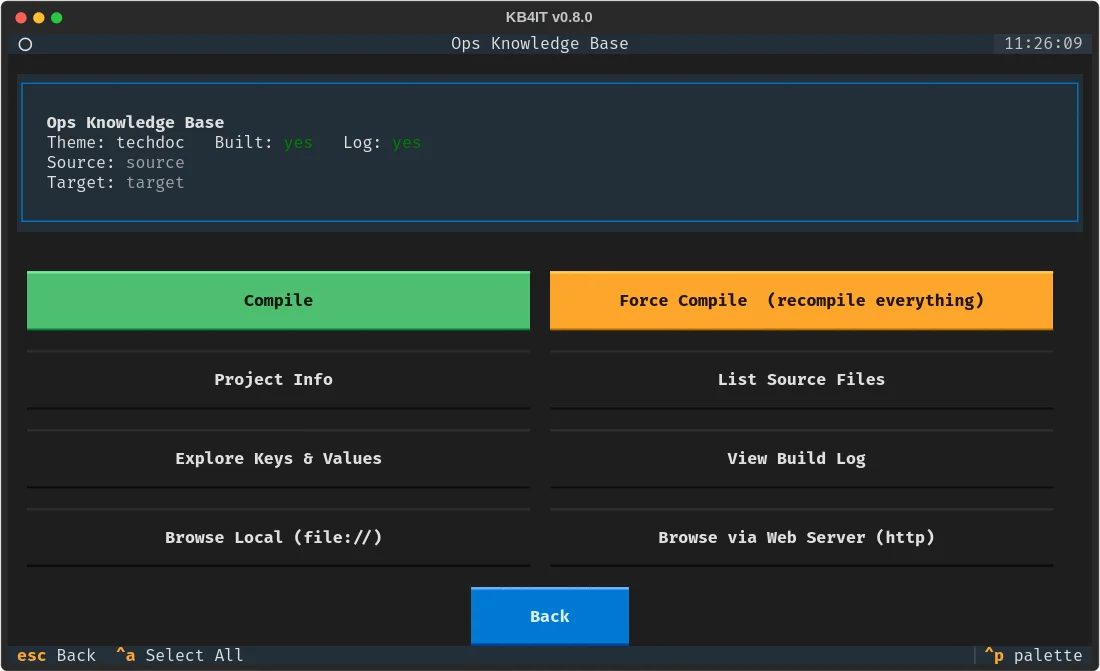
| Button | Does |
|---|---|
| Compile | Builds the site; only what changed |
| Force Compile | Rebuilds everything, like --force |
| Project Info | Shows the settings in repo.json |
| List Source Files | Lists the documents with their size |
| Explore Keys & Values | Browses the properties, see below |
| View Build Log | Shows the last log, filtered by level |
| Browse Local | Opens the site from disk in your browser |
| Browse via Web Server | Serves the site on http://127.0.0.1 and opens it |
The build screen shows a progress bar and the log as it happens. It says Done or FAILED at the end; Copy Log puts the log on the clipboard.
Explore your properties
Explore Keys & Values shows every property, its values and the documents that have each value. Pick a document and press View Document to read its properties and text.
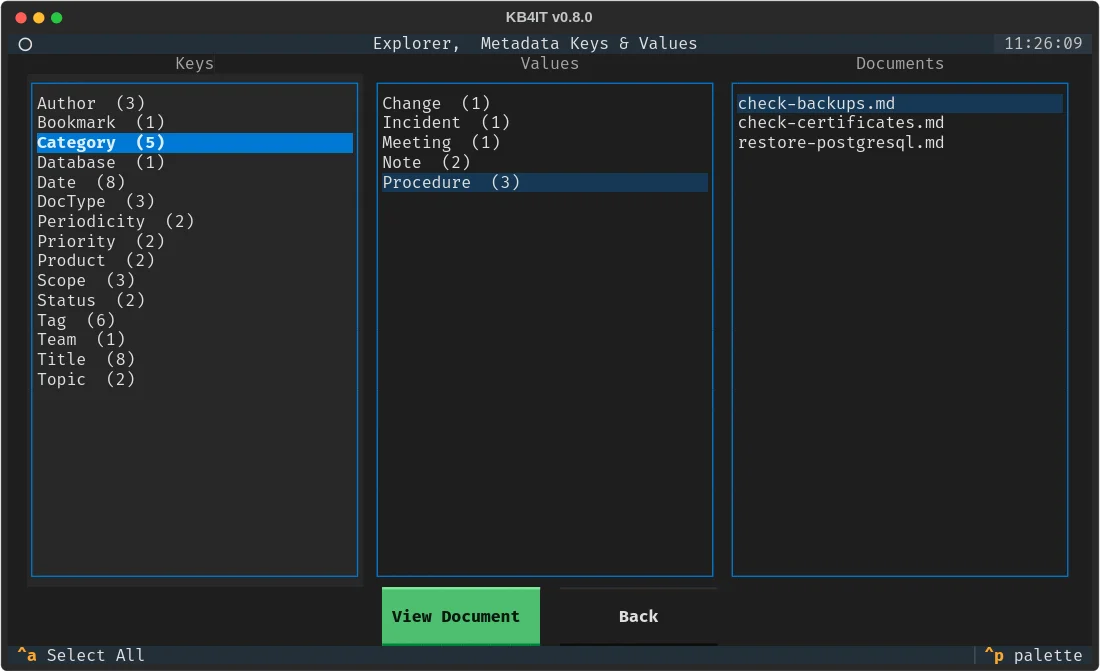
It works after the first build, because it reads the index the build writes.
Other screens
Themes lists the installed themes, and Apps the sample apps each theme can create.
Tip
The web server picks a free port from 8642 up and keeps running until you quit, so you can rebuild and reload the browser.